Move around the app
Each area of the app (Calendar, Kanban, Wiki, Automation, Data) has an icon in the navigation rail down the left edge. Hover an icon to see its name; the area you're in is highlighted.
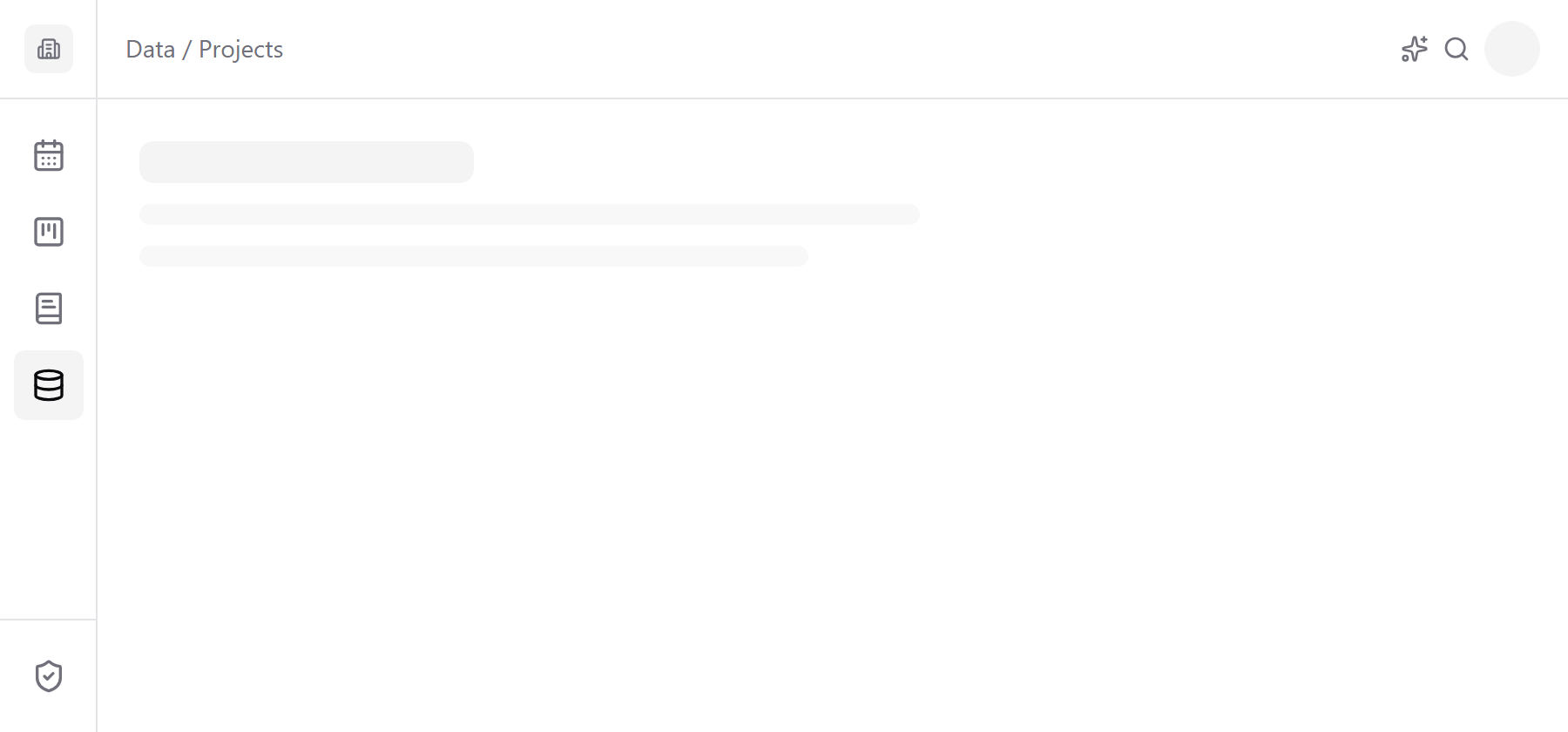
- Go home: click the logo at the top of the rail.
- Open an area: click its icon.
- Go back up a level: click a link in the breadcrumb at the top of the page.
- Switch between an area's pages: use the tabs beside the content, such as the models in Data or the tabs in your account. On a narrow screen they become a strip across the top.
- Reach admin settings: click the shield at the bottom of the rail. It's only there if you're an admin.
On a phone
- Tap the logo at the top left. A menu slides in with Home, every area, and the admin button if you have it.
- Tap where you want to go. Close the menu with the X or by tapping outside it.
Good to know:
- The top right of every page holds the assistant (where it's turned on), search, and your avatar, which opens your notifications and account.
- Every page has its own address, so you can bookmark it or send the link to a colleague.
Next: Search across the app