Take your first steps in Monark
By the end you'll have signed in, found your way around, added a record to one of your organization's databases, and set yourself up to hear when it changes. It's for anyone who has been invited to an organization on Monark, and takes about 15 minutes.
Before you start
- An invitation or account for your organization's Monark. If you don't have one yet, create an account with the email address your organization expects.
- Permission to add records to at least one model. Most members have it; if a step's button is missing, ask your admin.
Sign in
- Open your organization's Monark address.
- Enter your Email, click Continue, then enter your Password and click Sign in. If your organization offers it, you can click Continue with a provider instead.
You land on the home page.
Find your way around
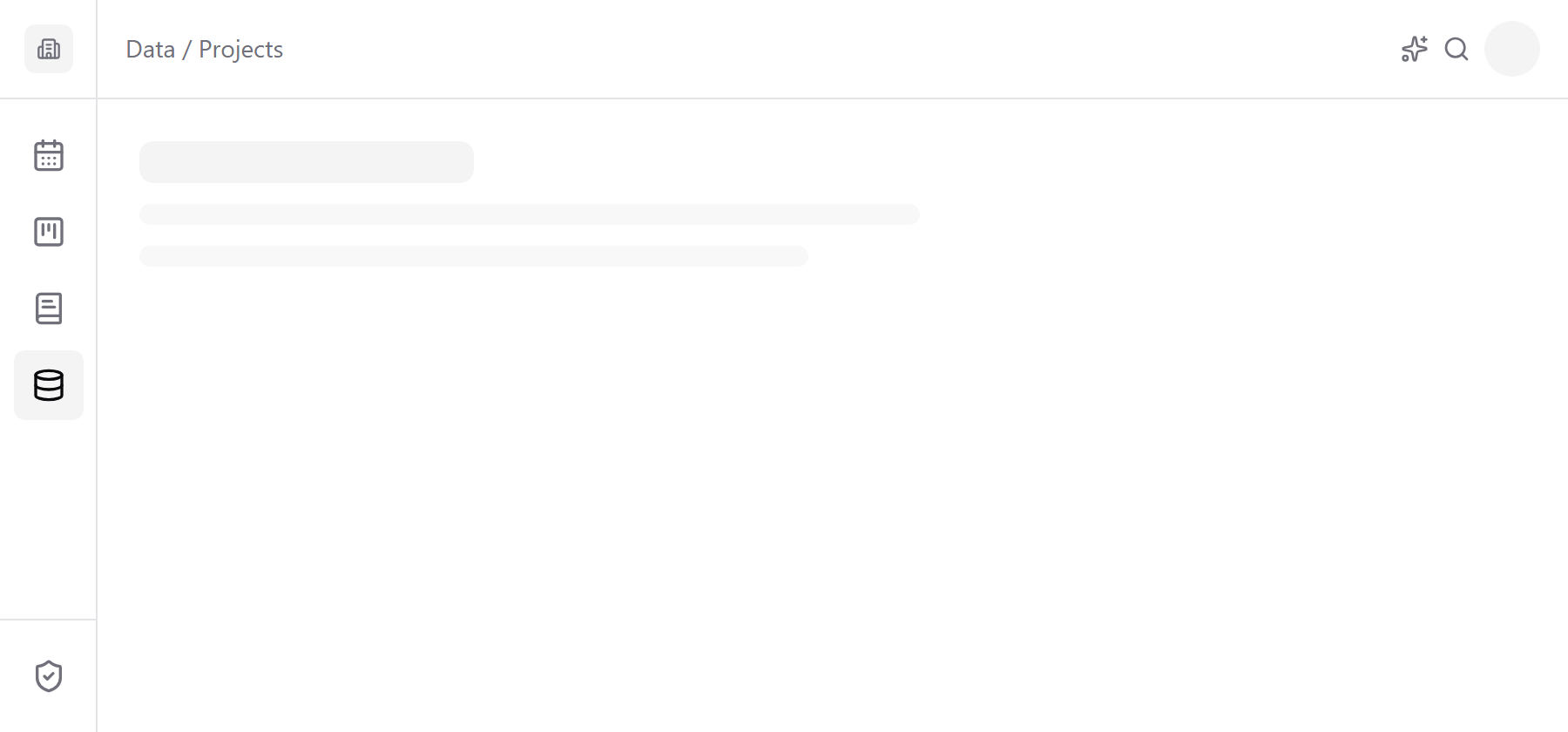
- Look at the navigation rail down the left edge. Each icon is an area of the app, such as Calendar, Kanban or Data; hover one to see its name. You only see the areas your organization uses. On a phone, tap the logo at the top left to open the same list.
- Look at the top right. The magnifier opens search, the sparkle icon (if you have it) opens the assistant, and your avatar opens your notifications and account.
- Click your avatar, open the Account tab, and choose Profile. Add a Display name so teammates recognise you, then click Save changes.
Add a record
Your organization keeps its own databases in Data. Each one is a model, such as Projects or Clients, and each row in it is a record.
- Click Data in the navigation rail. The first model you can access opens; the others are listed beside it.
- Pick the model you want to add to.
- Click New followed by the model's name, for example New Project. On a phone, tap the + button.
- Fill in at least the title, plus any other fields you know.
- Click Save. The record appears in the table.
Follow it
Following a record means you're notified whenever someone else changes it.
- Click your record in the table to open it.
- Click Follow. The button changes to Following.
From now on, when a teammate edits the record, a number appears on your avatar. Click the avatar to read the notification, and click Open to go straight to the record.
Find it again
- Press ⌘ K (Ctrl K on Windows and Linux), or click the magnifier at the top right.
- Type the first few letters of your record's title.
- Click it under Records.
What you built
You signed in, learned the navigation rail and the top bar, added a record and followed it, and found it again with search. Next:
- Data: filter records, save views, and edit many at once.
- Your account: turn on two-factor authentication and choose which notifications email you.
- Search and navigation: move around faster.
- Use Monark: everything else you can do in the app.