Sign in
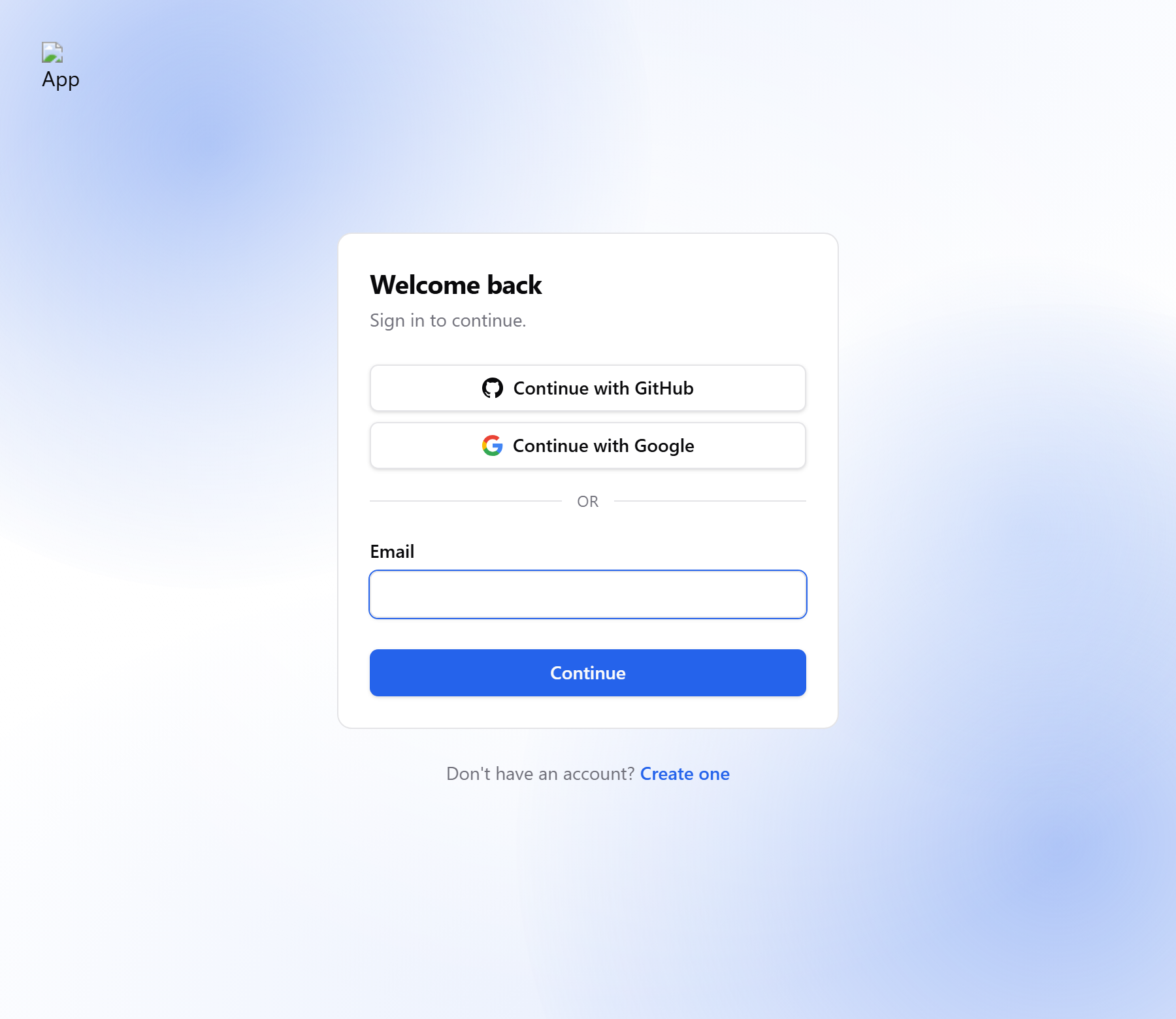
- Open the sign-in page. If your organization offers outside providers, click Continue with one of them and you're done.
- Otherwise enter your Email and click Continue. If the address shown is wrong, click Change.
- Enter your Password and click Sign in. You land on the home page.
Enter a two-factor code
If you've turned on two-factor authentication, a code page appears after your password on a device you haven't used before.
- Enter the 6-digit Code from your authenticator app.
- Click Verify.
Lost your phone? Click Use a recovery code and enter one of the codes you saved. Each works once.
Good to know:
- A banner on the sign-in page tells you why you're there: Email updated or Password updated means sign in with the new details.
- If your account is scheduled for deletion, you land on the Danger zone tab so you can cancel it.
- If you're an admin without two-factor and your 7-day grace period has run out, every page except your account sends you back to set it up.
Next: Reset your password