Kanban : user guide
End-user guide for the Kanban module (@monark/kanban, an extended module). It lives with the package on purpose : remove the module and its docs go with it. It's linked from the central user guide index ; developer details are in the module README.
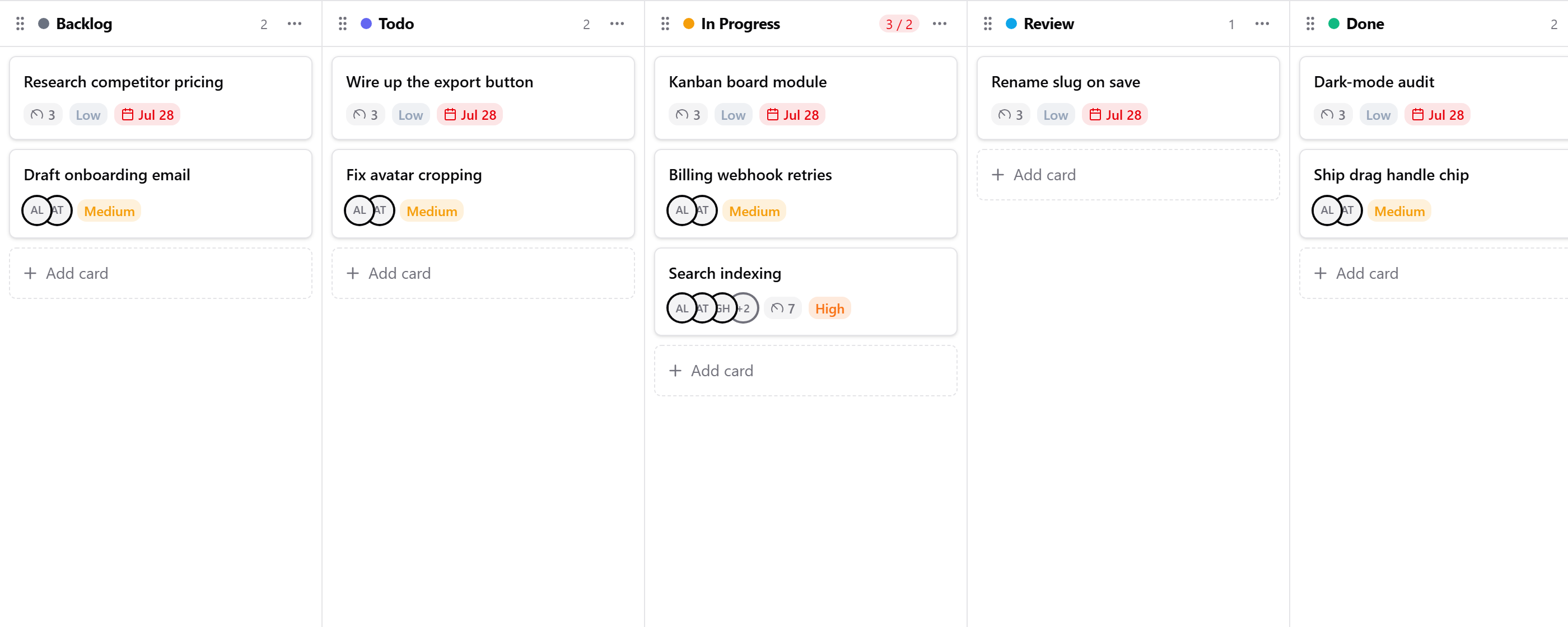
Reach the boards from the Kanban entry in the navigation rail (visible where the feature is enabled). A board is a project or workflow, made of columns (statuses), each holding an ordered list of cards (tasks). You drag cards between columns as work moves along.
Boards
Your organization can have many boards. New board creates one (name, optional description and colour). A fresh board starts with the columns Backlog / Todo / In Progress / Review / QA / Done, which you can rename or change.
Who can see a board is governed by role : a board with no role restriction is visible to everyone in the org ; once you grant specific roles, only they (plus board managers) can see it.
Columns
Columns are the stages across the board :
- Add / rename / recolour / delete a column (deleting a column removes its cards).
- Reorder columns by dragging.
- Give a column an optional WIP limit ; the header shows
N / limitand turns red when you're over. It's advisory : it warns, it doesn't block you from adding more.
Cards
- Add a card to a column, then drag it within a column to reorder, or to another column to change its status.
- Open a card to edit it. A card holds :
- Title and a description written in a block editor ; press
/for the block menu (headings, lists, quotes, and more). - A checklist : add a Check List block in the description and tick items off. The card face shows a progress bar (how many items are done).
- Assignees and reviewers : one or more org members each.
- Due date, priority (Low / Medium / High / Critical), and an estimate.
- Title and a description written in a block editor ; press
Assignees and reviewers show as avatars on the card.
Filtering & views
Where the board query feature is enabled, a query bar filters the board's cards without moving them : by title / description, status (column), assignee or reviewer, priority (including ranges like "High and up"), due date, estimate, and created / updated time. It understands @variables like @me and @today, so "my cards due this week" is one short query. Save a filter you use often as a named view ; personal to you, or shared with everyone who can see the board.
Search
The global command palette (⌘K / Ctrl-K) finds cards by title across every board you can access, and tells you which board each is on.
Notifications
When someone adds you as an assignee on a card, you get an in-app notification (and an email if you've opted that on). You're never notified about assigning a card to yourself. Manage these under notification preferences.
Permissions
What you can do on a board depends on your role's Kanban permissions ; viewing, creating boards, editing (columns + cards), deleting, and full management (including a board's role access) are separate grants.